Environmental Monitoring: Bring Temperature and Humidity Data into Daily Operations with ItsMiner
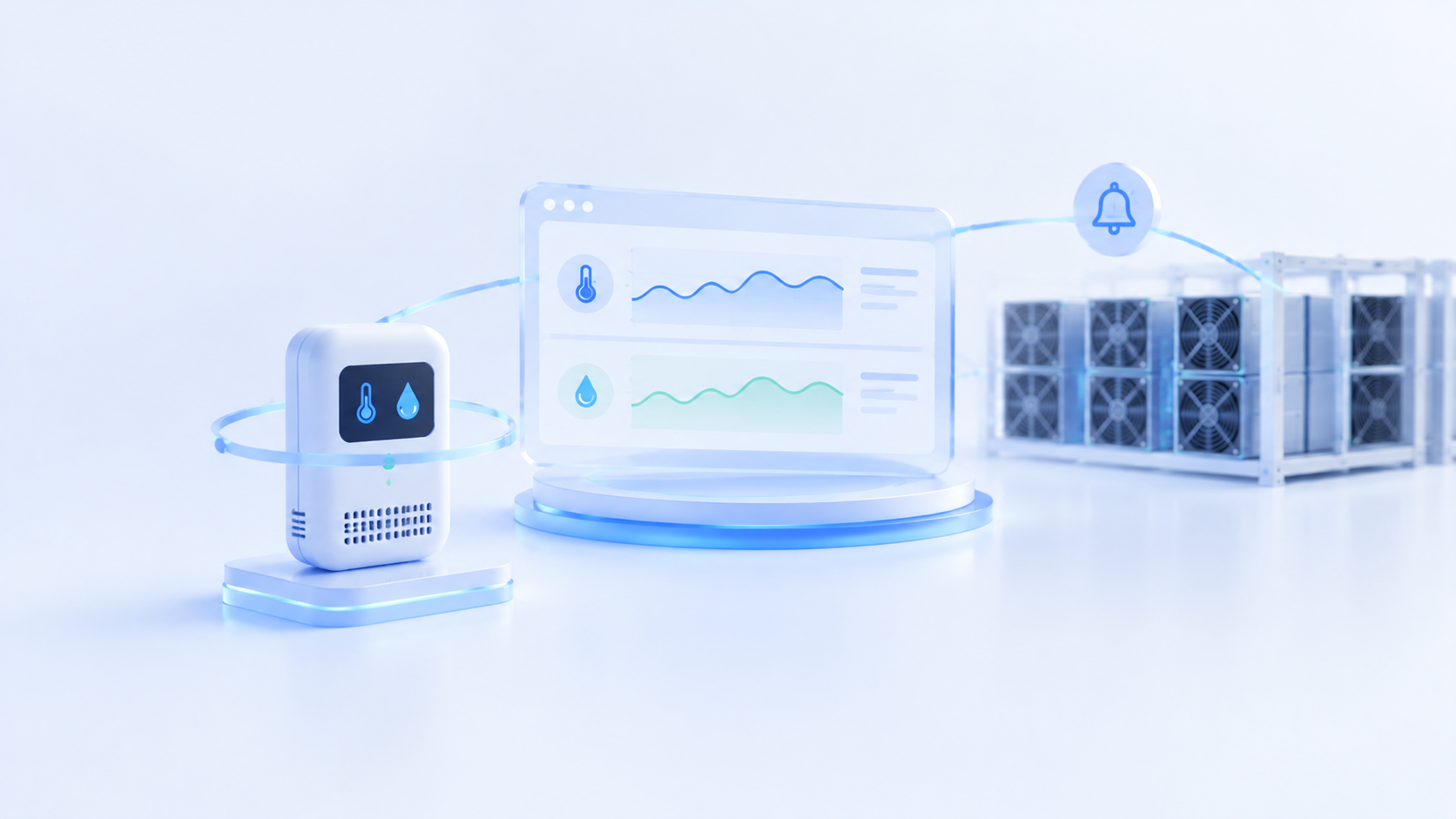
When miners report high temperatures or fluctuating hashrate, operators often need to check both the equipment and its surroundings. Are the affected miners concentrated in one building? Has the surrounding temperature been rising? Has humidity changed?
When environmental data and miner management sit in separate systems, troubleshooting means switching between them, matching timestamps, and then deciding what action to take. ItsMiner now supports environmental sensor connections, bringing temperature and humidity readings, historical charts, alarm records, and Automated O&M into a connected workflow. Site conditions can become part of the information operators use to manage miners.
View Site Temperature and Humidity in Assets
Teams can connect supported temperature and humidity monitoring devices from the Environmental Sensors tab in the Assets module. Select a brand and model available to the site, associate a monitoring server, and enter connection details such as the IP address, port, and Slave ID. The connection can then be tested and configured for data collection.
Once a device is connected, its temperature, humidity, and online or alarm status appear in the device list. A sensor can also be associated with its building, giving the readings a location reference.
For teams managing several buildings, clear device names and building associations are particularly useful. Naming a sensor “Building 1 — Air Intake,” for example, makes it easier to identify the location behind a reading when reviewing data, receiving alarms, or configuring an operations plan.
Ambient temperature and the temperatures reported by a miner serve different purposes. The former describes conditions around the sensor; the latter reflects conditions inside the equipment. Reviewing both gives operators more context when assessing how widely an issue may extend.
Review How an Issue Developed with Historical Charts
Current readings show what is happening now. Historical charts help operators understand how conditions changed over time.
The chart view supports reviewing temperature and humidity trends across multiple environmental devices. When investigating an issue in a building, teams can compare readings from different locations over the same period. Did several locations warm up together, or did one sensor show a distinct change? After ventilation adjustments or on-site work, did temperature and humidity gradually return to their previous levels?
This information can help narrow an investigation and support follow-up checks after an intervention. Readings still need to be interpreted in the context of sensor placement and site conditions. A single measurement point cannot represent an entire building.
Historical temperature and humidity data can also be exported to Excel for shift reports or further analysis. Teams can review changes by device and time without manually transcribing readings.
Use Alarm Notifications and Records for Different Tasks
ItsMiner receives high-temperature, low-temperature, high-humidity, and low-humidity alarms reported by environmental devices. Configured recipients can receive notifications through Telegram and email.
Notifications draw attention to newly detected issues. Alarm records retain the start time, recovery time, device, building, and duration for investigation and shift handovers. For recurring issues, teams can review when alarms tend to occur and how long they last, then use that history alongside on-site checks to investigate the cause.
An ongoing alarm does not repeatedly send notifications. Its record is updated when the condition recovers. In this release, device offline status is displayed as a communication state and is separate from these four environmental alarm notification types.
There is also an important distinction between two configuration tasks: temperature and humidity thresholds for device alarms are set on the sensor side, while ItsMiner's alarm notification settings define recipients and delivery channels. Teams can retain the alarm standards configured on their devices and connect those notifications to their existing shift procedures.
Put Established Response Rules into Automated O&M
After connecting an environmental device, teams can use its sensor data as a plan trigger under Configuration > Automated O&M.
Triggers can use device alarms or manually configured temperature and humidity thresholds, with a duration condition. When the configured conditions are met, the system carries out the planned operation, such as restarting miners or switching operating modes, within the selected scope.
For example, a building with an established high-temperature response procedure could use “ambient temperature remains above a defined value for a specified period” as a condition, then configure the appropriate operating mode for selected miners. The threshold, duration, and action should follow the site's equipment requirements and operating procedures.
Each environmental device plan selects one sensor. The sensor supplies the trigger input, while the execution scope determines which miners are affected. Both should be reviewed before enabling the plan. The sensor's associated building can supply a default scope, which the team can adjust to match its operating requirements.
A practical starting point is to connect sensors with clearly identified locations and confirm that their readings, charts, and alarms correspond to actual site conditions. Established response procedures can then be configured as Automated O&M plans, gradually bringing environmental monitoring into daily checks, troubleshooting, and miner operations.
Subscribe to ItsMiner's Blog
Get the latest posts delivered right to your inbox