ItsMiner Automated O&M: Turn Repetitive Miner Actions into Controlled Background Rules

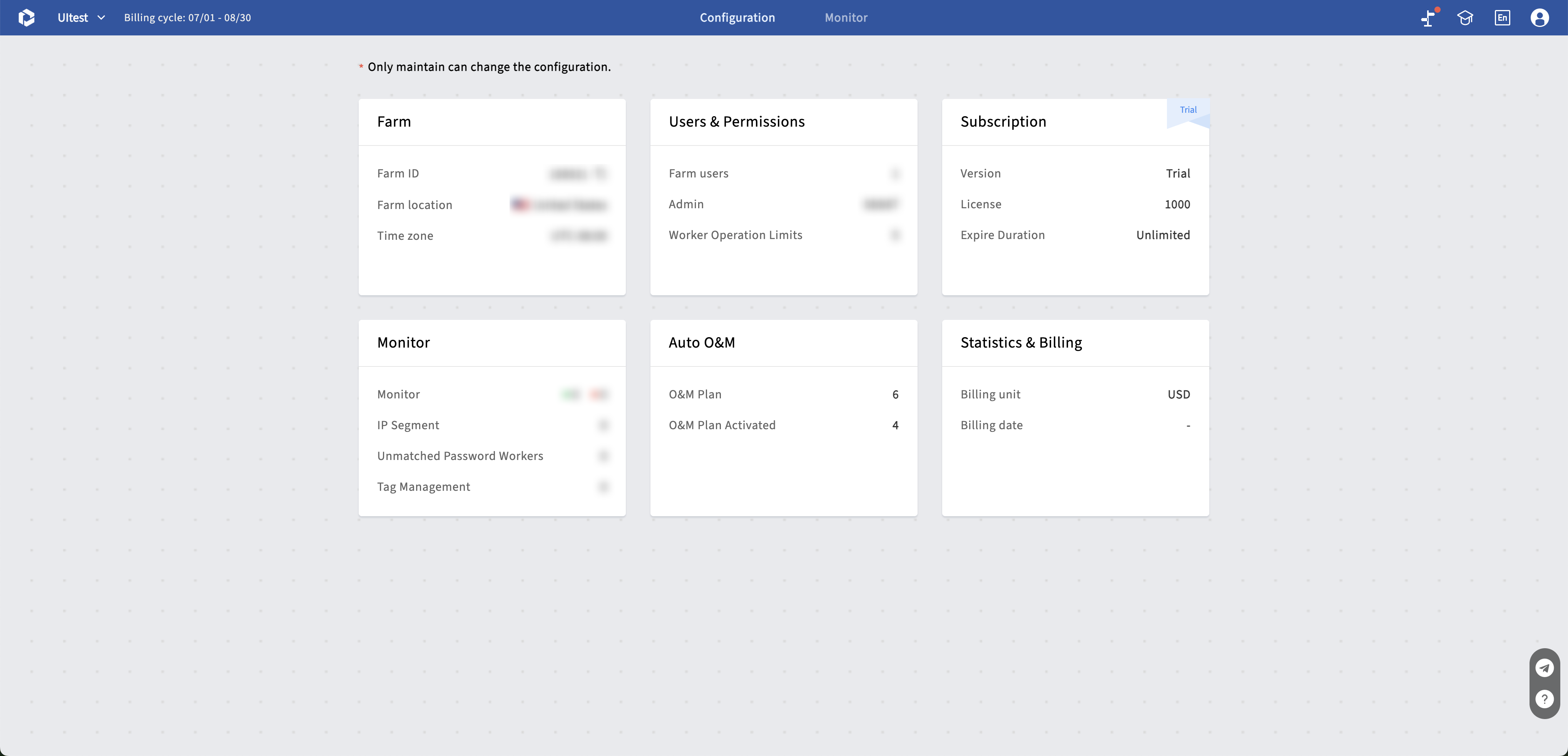
When a site scales up, the hard part is handling low hashrate, overheating, and offline events in a timely, consistent, and auditable way. ItsMiner Automated O&M, found under Configuration > Automated O&M, uses built-in actions and custom plans so common judgments and actions keep running in the background.
This guide is for farm administrators and O&M leads. One boundary should be clear first: Automated O&M is for miner exception handling and task dispatch. Load Control, Load Hold, and Anti-wake belong to the Electricity module.
Start with the two types of policy
Automated O&M follows monitor a state → evaluate a condition → perform an action → write a record. There are two types of policy:
- Built-in automated actions cover common cases such as low-hashrate restart, high-temperature restart, high-rejection-rate restart, offline-miner removal, Auto off-rack at static IP conflict, high-temperature work-mode switching. They are a good first layer for high-frequency exceptions.
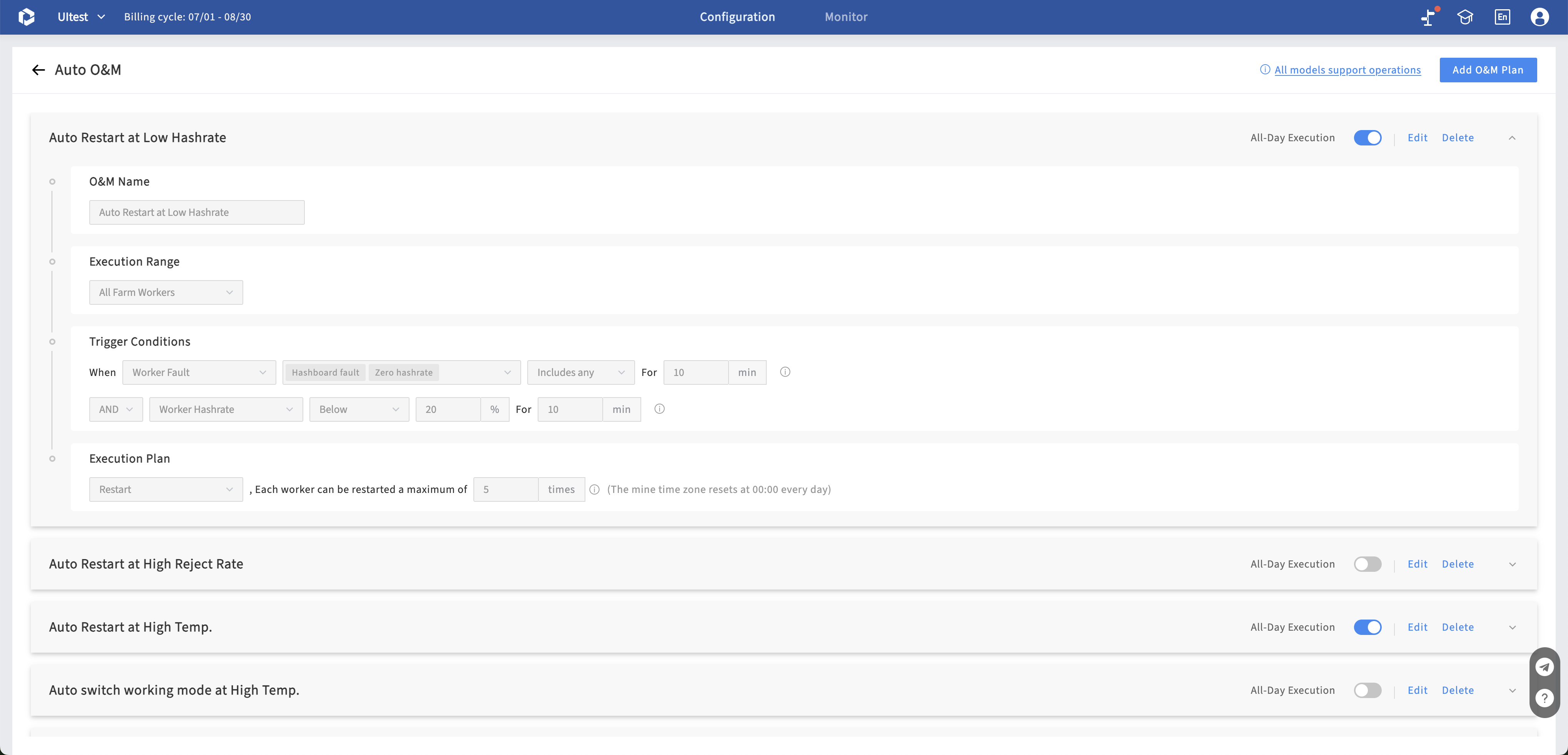
- Custom automated O&M plans are for a site’s own handling logic. A plan consists of a name, execution scope, trigger conditions, an execution plan, and an execution window. It can associate a specific model, sub-account, or network segment with a specific action.
Actions triggered by either path are written to Operation Records, so repeated handling has a consistent basis and a complete trail.
Begin with built-in actions
Built-in items can be enabled per farm. Some require a threshold. Start with exceptions that have a clear response, such as low hashrate, overheating, or prolonged offline status, then adjust thresholds based on the records.
Feature: Enable the relevant built-in item under Configuration > Automated O&M. For items that need a threshold, enter the value in the edit dialog and save. Low-hashrate, high-rejection-rate, and high-temperature restart actions, as well as high-temperature work-mode switching, do not apply to miners in Sleep mode. Those filtered miners are not written to Operation Records.
Use it for: Letting the system take on repetitive, low-risk handling, so the team can focus on exceptions that need judgment.
Restart-related built-in actions have a daily limit. For each miner and each built-in action type, the default maximum is three triggers per day, and the configurable maximum is five. The counter resets at 00:00 in the farm time zone. This prevents the same abnormal miner from being restarted repeatedly without entering manual investigation.
Use a custom plan to match site policy
When the rule is more specific than “cross a threshold, then restart,” create a custom automated O&M plan. A farm can save up to 15 plans. Multiple enabled plans run at the same time. Configure each plan in the following order:
- Set the scope. Choose the whole farm, or include/exclude miners by model, sub-account, or network segment.
- Set the conditions. Conditions can include IP conflicts, work mode, hashrate percentage over a sustained period, fault type, farm time, and other available fields. Multiple conditions can be combined with intersection or union logic. For hashrate and fault conditions, the duration starts at five minutes and is set in five-minute increments, which helps filter short-lived fluctuations.
- Choose the action. When conditions are met, a plan can restart miners, switch work mode, or create a temporary task. When an on-site inspection is needed, prefer creating a temporary task.
- Set the execution window. Plans run all day by default. You can also set a start and end time with minute-level precision, including an overnight window. Outside that window, even if the plan remains enabled, the system does not evaluate new triggers.
For example, for a given miner model, set “create a temporary task when a fan fault lasts for five minutes.” That identifies and dispatches the fault first, instead of using restarts to mask a hardware issue. Once a plan is linked to a temporary task or repair order, the related ticket cannot be deleted directly.
Keep automation under control
A plan runs only when its toggle is on and the current time is inside its execution window. When a window ends, work already started is not interrupted; only new triggers are blocked. After the farm time zone is changed, the system evaluates the window in the new time zone. Toggling the switch clears real-time statistics, such as the current daily restart count, so it should not be toggled frequently.
Feature: Administrators can create, edit, delete, and enable or disable built-in items and plans. Only members with Configuration module management permission can change execution windows. High-risk batch restarts or work-mode changes remain subject to miner-operation restrictions.
Use it for: Separating policy configuration rights from routine viewing rights, so a rule change does not affect the entire site.
An operating rhythm you can adopt
- Before rollout: List frequent exceptions, decide which can be handled automatically and which must be dispatched as a task, and define the miner scope.
- During the first week: Enable only a small set of built-in actions. Review Operation Records daily to confirm trigger frequency, matched miners, and results.
- After the policy stabilizes: Turn recurring, well-defined cases into custom plans. Add a sustained duration where brief fluctuations should not cause action.
- Review weekly: Use Operation Records and duty records to check repeatedly triggered miners, outdated thresholds, and cases that should not be automated.
Automated O&M is not handing every exception to the system. It is deciding clearly what should be executed immediately, what should be dispatched, and what must still be judged by a person. Start with built-in rules for basic coverage, then write validated experience into custom plans. That is how daily O&M moves from watching alerts to managing rules.
Contact us for a demo:
- Email: sales@powsell.com
- Telegram: @ItsMinerOfficial
Subscribe to ItsMiner's Blog
Get the latest posts delivered right to your inbox